How to Use Canva to Change the Color of an Image, Graphic Element, or Text
Key Takeaways
- Canva offers various color-changing options for images, including Duotone and filters like Color Pop.
- Graphic elements in Canva, mostly in SVG format, are easily customizable in terms of color.
- Changing text colors in Canva is simple: use the Text Color tool and Brand Kit for consistent design.
Canva’s media library offers many images, graphics, and text sets, as well as the option to upload any of your own. You don’t have to keep the stock colors of Canva’s media; here are the different ways to change colors in Canva.
How to Change the Colors of an Image in Canva
You can find photos and images in Canva’s Elements library, just scroll to find Photos. If you prefer to upload your own, you can do so under the Uploads tab, and you can also create an AI-generated image from Magic Media or one of Canva’s app options.

While you can’t edit specific colors in Canva, you can change image colors with different options and results. Firstly, select your image to bring it onto the canvas, then select it again to reveal Edit Image in the top panel, and select that. Then you’ll see options for Effects and Adjust, both of which have color-changing tools.
Under the Effects tab, you can change your image’s colors by going to Filters, Effects, or using one of the Apps.
The Effects menu in the Effects tab only offers one color-changing tool: Duotone.

Duotone offers over 20 dual-color overlays to place on your image. Once any are selected, you can edit the color effect with the Highlights, Shadows, and Intensity features. You can also change any of the colors to customize your duotone if none of the presets work for your desired color scheme.
Using Canva Filters to Change Image Colors

Canva’s image filters work similarly to filters you’ll find in Instagram or camera apps on your phone. Largely, the color change is stylistic, but you can add some color hues or white balance tinting to move your image toward your desired color.

The filter options have their own menus: Natural, Warm, Cool, Vivid, Soft, Vintage, Mono, and Color Pop. The Color Pop menu offers the most colorful and vibrant options for changing colors. Each filter has an intensity scale for how strong the effect should be applied.
Using Canva Apps to Change Image Colors
Canva offers dozens of apps for various tools, including some color editing ones. Here are the best Canva Apps for changing your image’s colors:
- Colorize
- ColorMix
- Trippy
- Colorify
How to Recolor Graphic Elements in Canva
Canva boasts a huge library of graphic elements, from decorative designs to illustrated graphics and even animations. There are many uses for everything. Sometimes, though, the colors might need adjusting to fit your design.
Most graphics in Canva are in SVG format, which means they’re scalable vectors and easy to change the colors. You’ll know if the element is an SVG by selecting it on your canvas and looking for the color palette to appear above the canvas. Some animations also reveal the color palette, but these are GIFs, not SVGs.
If there’s no color palette when selected, then it’s a raster image rather than a vector graphic. Luckily, you can edit the colors of raster elements in the same way as changing the colors of photos, as mentioned above.

After selecting your SVG or GIF and revealing the color palette, you’ll see all the colors that make up the current graphic. You can change any of these colors, including the linework.
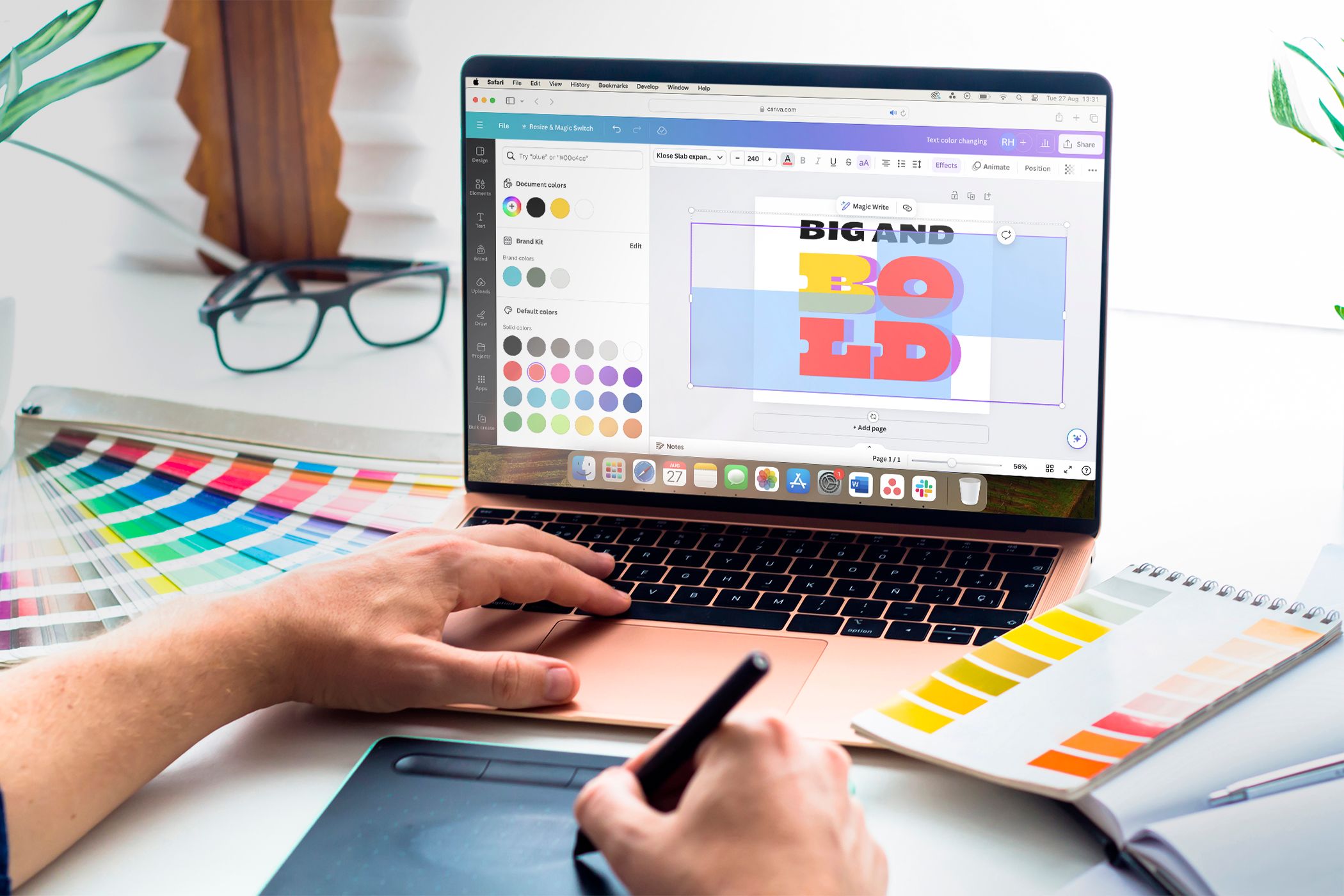
Select the color swatch of the color you wish to change to reveal the Document Colors tab. From here, you can see any colors already present on your canvas, and you can also use the color picker to add a new color—using the gradient color picker or typing in the name or hex code of a color.

This method is a great way to make your design cohesive with your brand. You can also use colors in the Brand Kit if you’re a Canva Pro user. At the bottom of the colors menu, there’s also an option to change all instances of one color to your new chosen color, which saves you a bunch of time selecting different elements.
How to Change Text Colors in Canva

Changing text colors in Canva is the simplest way to change colors. Firstly, add text to your canvas by selecting the Text tab on the left.
Here, you’ll be presented with a few options for adding text, this includes adding a text box (or using Magic Write), opening your Brand Kit to find your brand’s font choices, using pre-set heading and body text sizes, or using pre-designed font combinations. The font combination designs are already designed with colors, but these can be changed.

All the default text in Canva is black, which is a standard color and suits most designs. If you want to jazz up your design, then select your text box and select the Text Color tool—an “A” with a color or gradient line beneath it—which can be found above the canvas.
From here, you can use existing document colors, add a new color, use your Brand Kit colors, or easily pick any of the default color options.
If you want to change the color of just one letter or one word in a phrase rather than the whole text box, use your cursor to double-click and highlight one word, or click and drag to highlight specific letters. Then choosing a color on the color menu will only affect the highlighted words or letters, rather than the entire text box.

If you choose a font combination that has multiple colors, you can recolor it in the same way. The text design is grouped as one design, but each font type is in its own text box and can be selected as such. Again, you can also recolor individual words or letters within these text boxes and groups.
For premium users, Canva’s Brand Kit feature is the best way of ensuring your designs are cohesive with one another, not just in color, but with the same fonts and styles. You can open the Brand Kit and select your brand colors to apply to any design, rather than remembering or copying and pasting hex codes. This prevents variation in colors across your designs.
Canva’s library of elements, images, and text designs is fantastic. But leaving the default colors in place can make your designs look like stock imagery and flat. With different techniques for different element types, you can easily recolor almost anything in Canva, ensuring your designs are unique and nothing looks out of place or off-brand.
link